Pipelines & Builds
Kovra provides two complementary CI/CD systems for your applications: Pipelines (GitLab CI/CD) and Builds (container image building). Both are accessible from the application detail page.
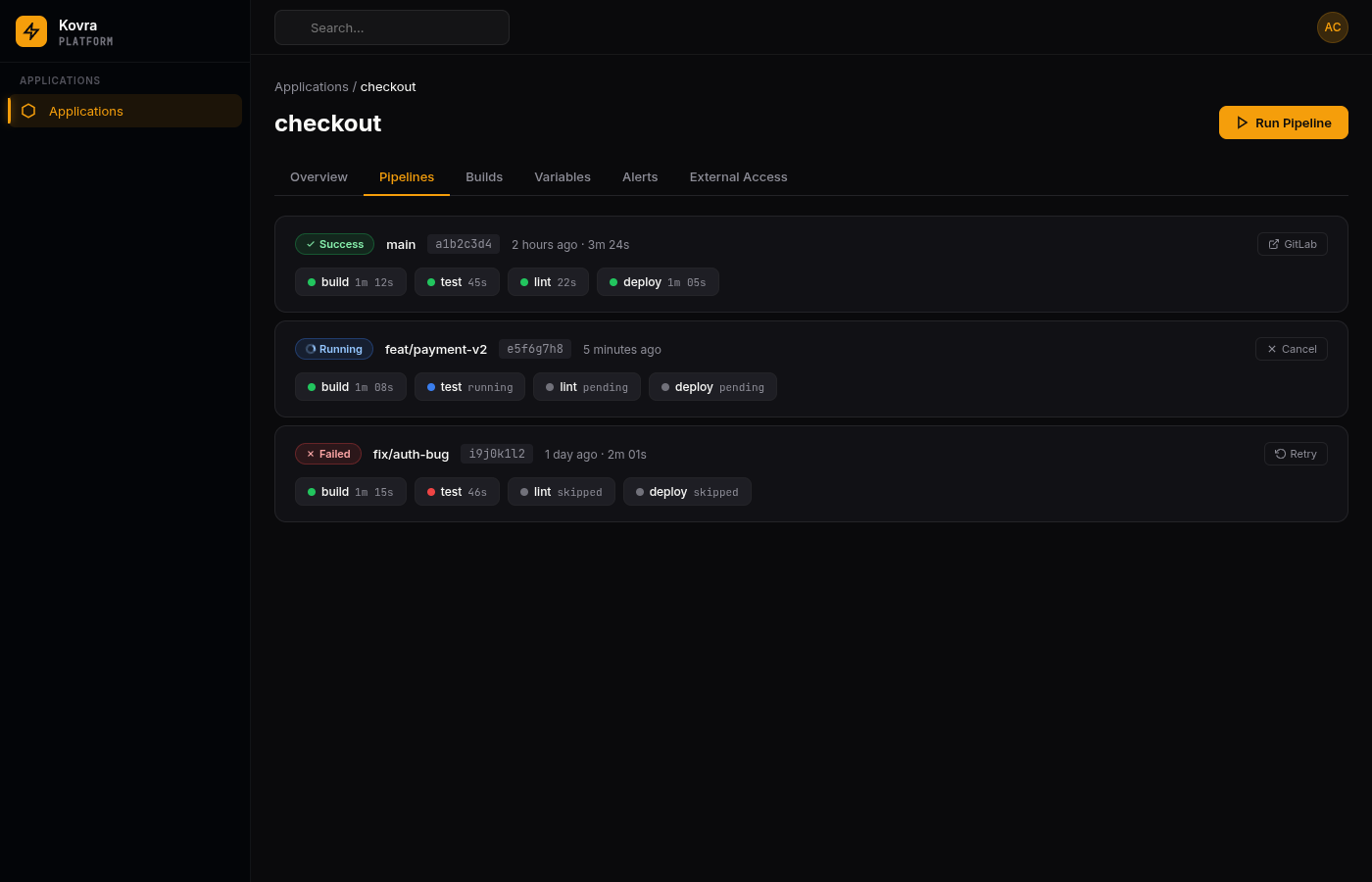
Pipelines
Pipelines execute your GitLab CI/CD workflows directly from the Kovra dashboard. Each pipeline runs against a specific branch or tag and contains one or more jobs organized into stages.
Viewing Pipelines
Navigate to your application and click the Pipelines tab. Each pipeline card shows:
- Status — Success, Failed, Running, Pending, Canceled
- Git ref — The branch or tag the pipeline ran against
- Commit SHA — Short hash for quick identification
- Timestamp — When the pipeline was created
Click any pipeline to expand and see all jobs grouped by stage name.
Pipeline Actions
| Action | When Available | What It Does |
|---|---|---|
| Run Pipeline | Always | Trigger a new pipeline on a specified branch |
| Cancel | Running or Pending | Abort the pipeline execution |
| Retry | Failed or Canceled | Re-run the pipeline with the same git ref |
| View in GitLab | Always | Open the pipeline in GitLab’s native viewer |
Viewing Job Logs
Click the Log button on any job to open the terminal-style log viewer:
- Full stdout/stderr output with line numbers
- Search box to filter log lines
- Copy all logs to clipboard
- Color-coded output (stderr highlighted in red)
Prerequisites
Pipelines require a GitLab project linked to your application. Without one, the tab shows a prompt to connect a GitLab project.
Builds
Builds create container images from your application’s Dockerfile and optionally auto-deploy them to Kubernetes.
Viewing Builds
The Builds tab lists all container image builds with:
- Commit message or build identifier
- Status — Pending, Building, Succeeded, Failed, Cancelled
- Branch the build was triggered from
- Duration — Time taken to complete
Triggering a Build
Click Trigger Build and specify a branch name (defaults to main). The build:
- Clones your repository at the specified branch
- Detects the Dockerfile (or uses your configured path)
- Builds the container image
- Pushes it to the container registry
- Optionally auto-deploys to Kubernetes
Build Logs
Click any build to expand and view logs with:
- Real-time streaming for active builds
- Search to find specific log lines
- Auto-scroll that pauses when you scroll up and resumes at the bottom
- Copy all logs to clipboard
Build Configuration
Click Settings in the Builds tab to configure:
| Setting | Description | Default |
|---|---|---|
| Enable builds | Toggle automatic builds on/off | Disabled |
| Branch | Which branch triggers automatic builds | main |
| Dockerfile path | Path to your Dockerfile | Auto-detected |
| Auto-deploy | Deploy successful builds to Kubernetes automatically | Disabled |
| Build arguments | Key-value pairs passed as Docker ARG values | None |