Managed Databases
Overview
Kovra Cloud provides managed PostgreSQL databases powered by CloudNativePG (CNPG). Databases are provisioned within your tenant namespace with automatic backups, encrypted credentials, and in-cluster connectivity.
Creating a PostgreSQL Database
Prerequisites
- An active Kovra Cloud tenant in
readystatus - Available database quota on your plan (see limits per plan)
Via the Dashboard
- Navigate to Databases in the sidebar
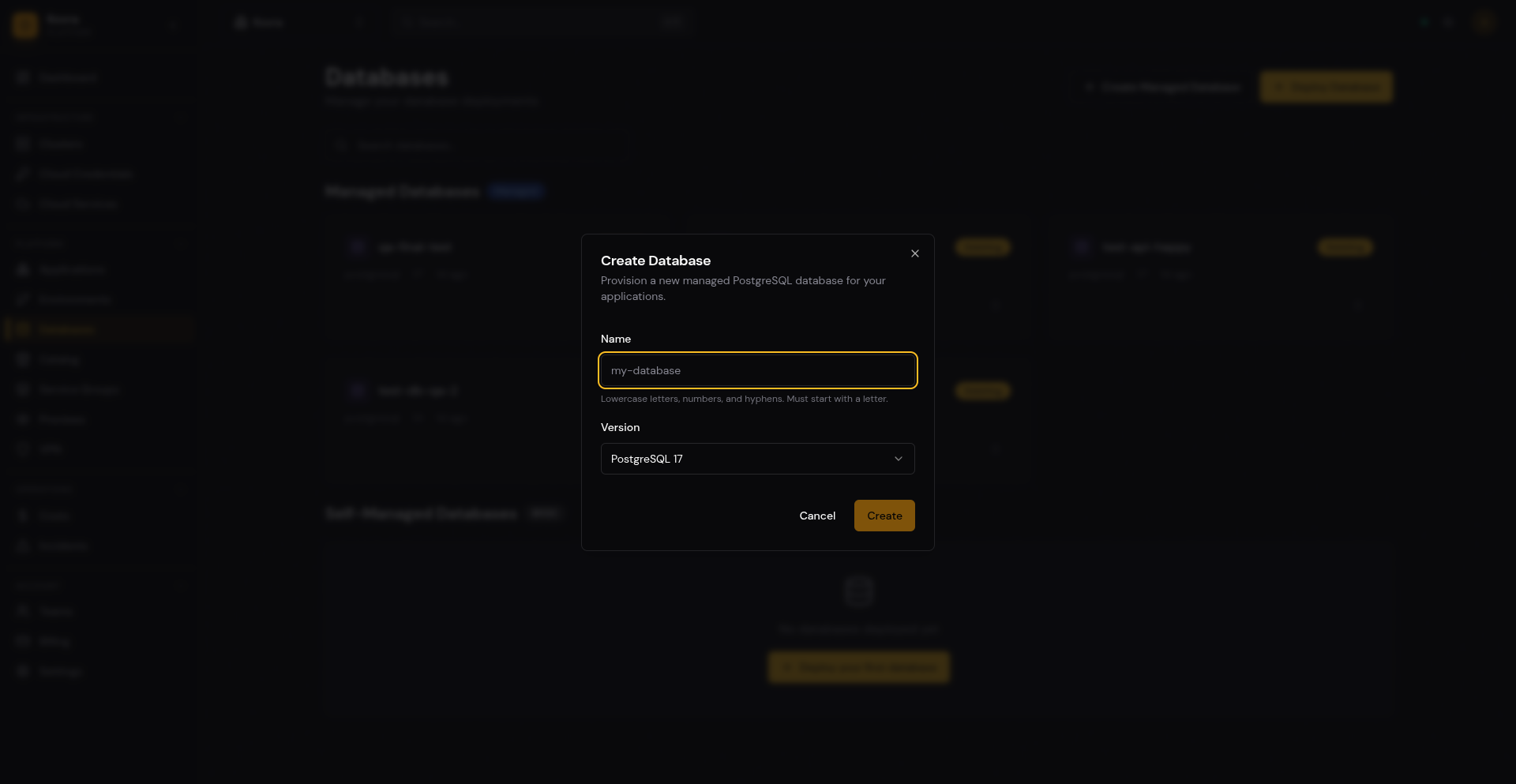
- Click Create Managed Database
- Enter a database name (lowercase alphanumeric with hyphens, 2-63 characters, must start with a letter)
- Optionally select a PostgreSQL version (defaults to latest supported)
- Click Create
Provisioning Status
The database goes through these lifecycle states:
| Status | Description |
|---|---|
pending | Database record created, waiting for CNPG to start provisioning |
provisioning | CNPG Cluster CR is being applied and PostgreSQL instance is starting |
ready | Database is running and connection URL is available |
failed | Provisioning failed (check error_message for details) |
deleting | Database is being torn down |
Supported Versions
- PostgreSQL 15
- PostgreSQL 16
- PostgreSQL 17
If no version is specified, the latest supported version is used.
Naming Rules
Database names must:
- Be lowercase alphanumeric with hyphens only
- Start with a letter
- Be between 2 and 63 characters long
- Be unique within your tenant
Connecting to Your Database
Getting the Connection URL
Once the database status is ready, click on the database in the Databases page to view its detail. The connection URL is displayed on the detail page and can be copied to your clipboard.
Connection String Format
postgresql://<user>:<password>@<host>:<port>/<database>?sslmode=requireWhere:
- host is the CNPG service DNS name within the Kubernetes cluster
- port is
5432 - sslmode is
require(TLS enforced)
Connecting from Your Application
Set the DATABASE_URL environment variable on your application:
- Copy the connection URL from the database detail page
- Navigate to your application’s Variables page
- Add a secret variable:
- Key:
DATABASE_URL - Value: the connection URL
- Secret: Yes
- Key:
- Trigger a redeployment to pick up the new variable
Since both your application and database run in the same tenant namespace, connectivity is automatic via Kubernetes service DNS.
Connecting from Outside the Cluster
Databases are not exposed to the public internet. To connect from your local machine (for example, with psql or a GUI tool), you must:
- Be on a Business or Enterprise Cloud plan
- Enable WireGuard VPN for your tenant (see VPN / Private Access)
- Connect via VPN, then use the internal service DNS name
Example with VPN connected:
psql "postgresql://user:password@kovra-db-a1b2c3d4-rw.kovra-abcd1234.svc.cluster.local:5432/app?sslmode=require"Listing Databases
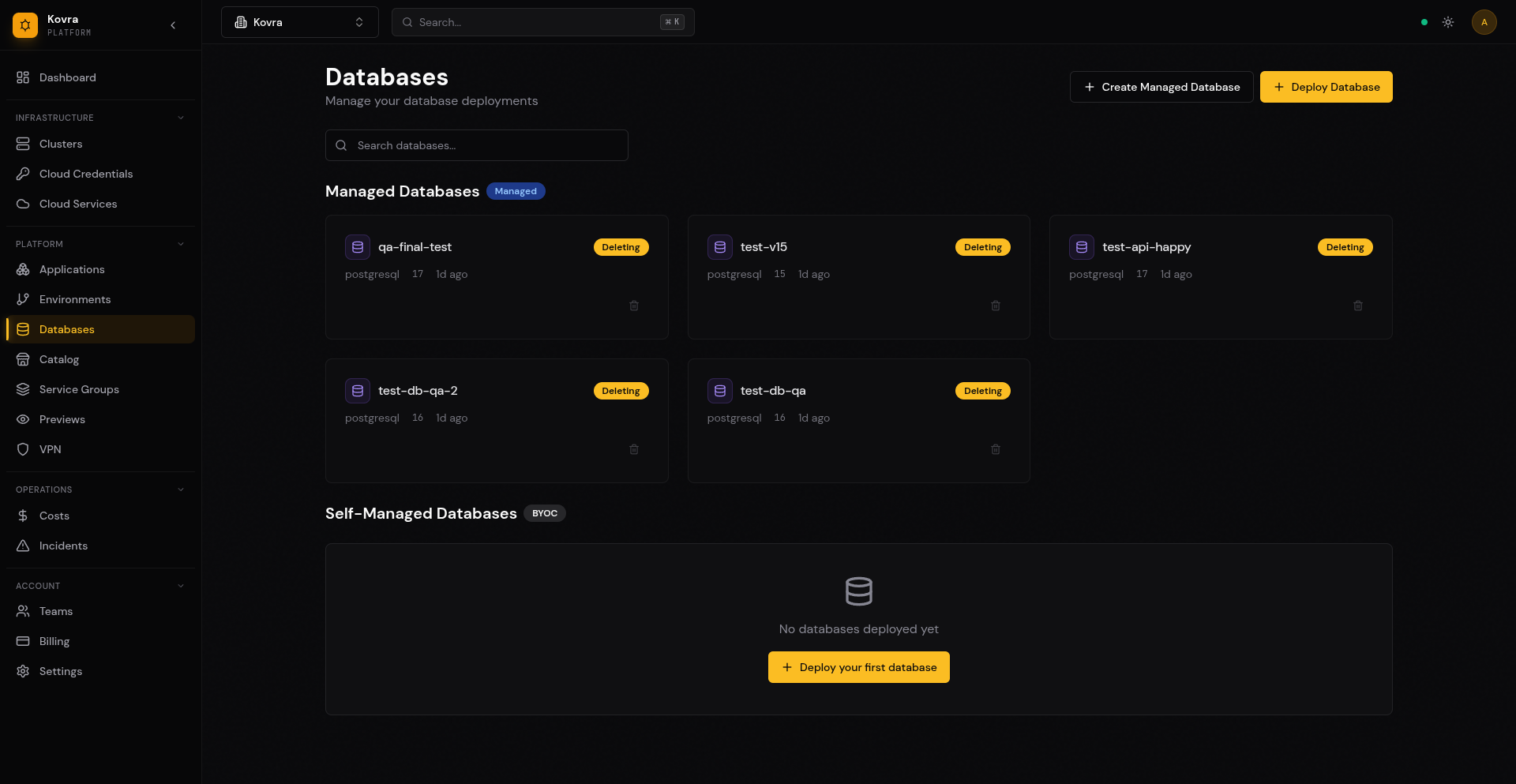
All your managed databases are listed on the Databases page under the Managed Databases section. Click on any database to view its details and connection URL.
Deleting a Database
To delete a database, click the delete icon on the database card or on its detail page. Deletion is asynchronous — the database transitions to deleting status while resources are cleaned up.
Warning: Deleting a database is irreversible. All data stored in the database will be permanently lost. Ensure you have backups before deleting.
Backup and Recovery
CNPG provides built-in continuous backup capabilities. Backups are managed at the platform level:
- Continuous WAL archiving ensures point-in-time recovery capability
- Scheduled base backups run automatically
- Recovery operations are handled through the platform
For self-managed backup workflows, use pg_dump via VPN connection to create logical backups.
Database Limits per Plan
Each plan includes a fixed number of databases:
| Plan | Max Databases | PostgreSQL Versions |
|---|---|---|
| Developer | 1 | 15, 16, 17 |
| Team | 3 | 15, 16, 17 |
| Business | 10 | 15, 16, 17 |
| Enterprise Cloud | Unlimited | 15, 16, 17 |
When you reach your plan’s database limit, the API returns 429 Too Many Requests. To create more databases, either delete an existing database or upgrade your plan. See Billing & Usage for plan upgrade instructions.
Error Handling
Common Errors
| Error | Status | Cause |
|---|---|---|
tenant not found | 404 | The specified tenant ID does not exist or does not belong to your organization |
tenant is not ready | 409 | The tenant is still provisioning; wait until status is ready |
database quota exceeded | 429 | You have reached the maximum number of databases for your plan |
a database with this name already exists | 409 | A database with the same name already exists in your tenant |
invalid database name | 400 | Name does not meet naming rules (see above) |
unsupported database version | 400 | Requested version is not one of: 15, 16, 17 |
Next Steps
- VPN / Private Access — Connect to your database from outside the cluster
- App Deployment Guide — Configure your app to use the database
- Billing & Usage — Understand database quotas and plan limits