Databases
Kovra lets you deploy and manage PostgreSQL databases directly on your Kubernetes clusters with built-in backup, restore, and high availability support.
Deploying a Database
- Navigate to Databases in the sidebar
- Click Deploy Database to browse available database templates in the catalog
- Select a PostgreSQL template and configure your target cluster and namespace
- The database is deployed and appears in your databases list
Database Detail Page
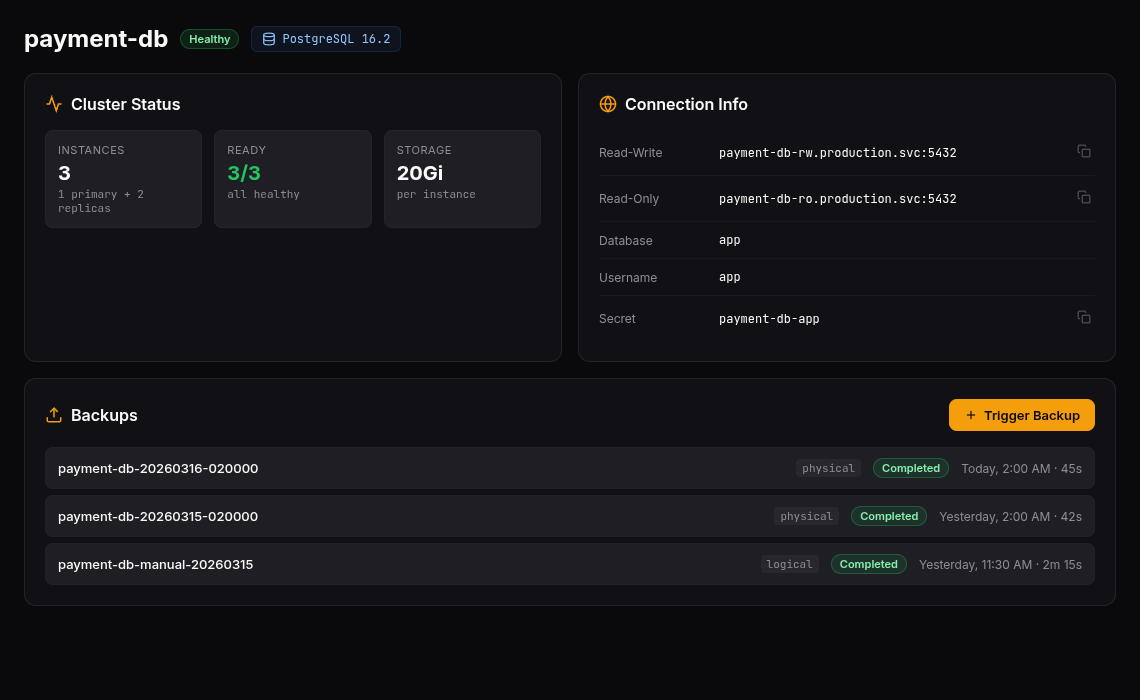
Click any database to see its management dashboard with these sections:
Status
- Instance count — Current number of replicas
- Ready instances — How many replicas are healthy
- Phase — Operational state of the database cluster
- PostgreSQL version — Running version
- Storage size — Allocated disk space
- Primary instance — Which replica is the primary (read-write)
Scaling
Scale your database replicas from 1 to 5 instances:
| Instances | Mode | Behavior |
|---|---|---|
| 1 | Standalone | Single instance, no failover |
| 2+ | High Availability | Automatic failover if primary fails |
Connection Info
View the connection details for your database:
- Read-write hostname — Connect to the primary instance
- Read-only hostname — Connect to replica instances (for read scaling)
- Port, database name, username
- Kubernetes secret name — Where credentials are stored
Backups
Manual Backups
Click Trigger Backup to create an on-demand backup immediately. Each backup shows:
- Status (Pending, Running, Completed, Failed)
- Method (Physical or Logical)
- Start and completion timestamps
- WAL segment information
Scheduled Backups
Create recurring backup schedules:
- Click Create Schedule in the Scheduled Backups tab
- Define a cron expression (e.g.,
0 2 * * *for daily at 2 AM) - Choose backup method:
- Physical — Faster, block-level backup (~30 second RPO)
- Logical — Portable, pg_dump-style, slower but cross-version compatible
- Set retention policy for how long backups are kept
Schedules can be suspended and resumed without deleting them.
Restore
Point-in-Time Recovery (PITR)
Restore your database to any point in time covered by your backups:
- Go to the Restore tab
- Select the target recovery time (date and time)
- Optionally adjust the instance count and storage size for the restored cluster
- Click Restore to begin the recovery
The restore operation creates a new database cluster from the backup, leaving your current database untouched.
Connection Pooling
Optionally enable PgBouncer connection pooling for your database:
| Setting | Description | Default |
|---|---|---|
| Pool mode | Transaction or Session | Transaction |
| Pool size | Max backend connections | 20 |
| Max client connections | Max frontend connections | 100 |
Connection pooling reduces database load by reusing connections across application requests.