Alerting
Kovra provides pre-built alert presets that monitor your applications for common issues. Alerts fire when metrics cross configured thresholds and send notifications to your connected channels.
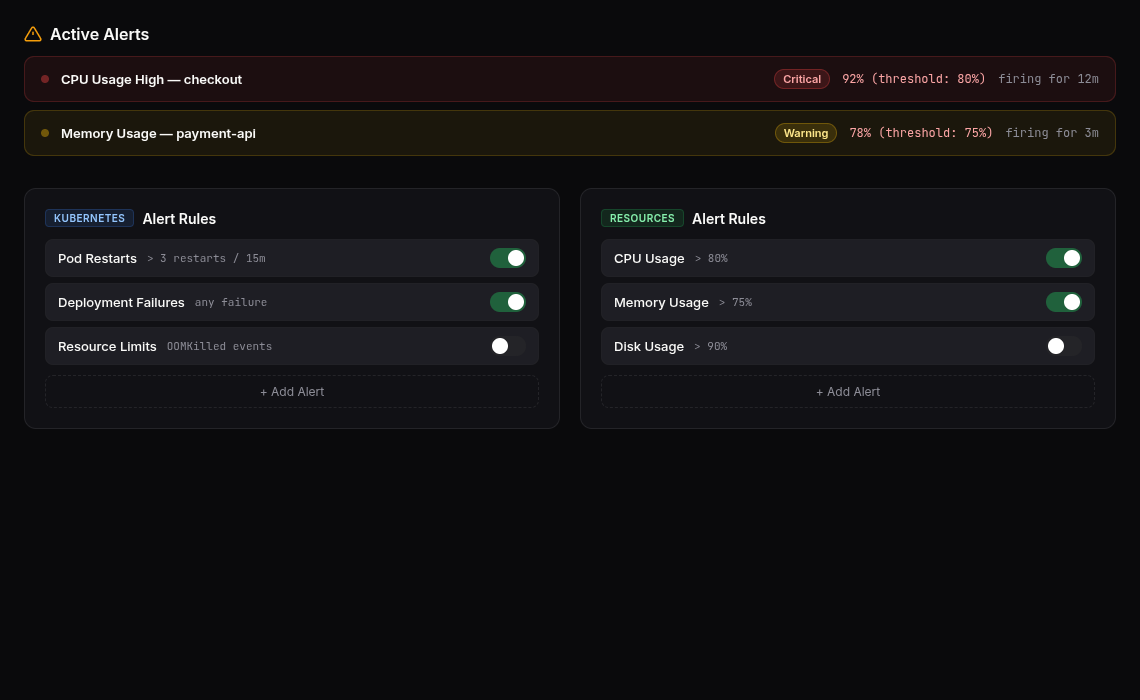
Alert Presets
Alerts are organized into three categories:
Kubernetes Alerts
- Pod Restarts — Alert when pods restart frequently
- Deployment Failures — Alert on failed rollouts
- Resource Limits — Alert when containers hit CPU/memory limits
Resource Alerts
- CPU Usage — Alert when CPU exceeds a threshold (e.g., 80%)
- Memory Usage — Alert on high memory consumption
- Disk Usage — Alert when persistent volumes fill up
HTTP Alerts
- 5xx Error Rate — Alert on server error spikes
- High Latency — Alert when response times exceed thresholds
Enabling Alerts
- Navigate to your application’s Alerts tab
- Browse available presets by category
- Click + to enable a preset
- Adjust the threshold if needed (e.g., change CPU alert from 80% to 90%)
- The alert starts monitoring immediately
Each alert has a toggle switch to enable or disable it without removing the configuration.
Viewing Active Alerts
The Active Alerts section at the top of the Alerts tab shows currently firing alerts with:
- Alert name and severity (Critical, Warning, Info)
- When it started firing
- Current metric value vs. threshold
Alert History
The Alert History section shows a timeline of all alert events:
- Fired — When the alert triggered
- Resolved — When the metric returned below the threshold
- Timestamps and duration for each event
Notification Channels
Alerts are delivered through notification channels configured in Settings → Notifications.
Supported Channel Types
| Type | Configuration | Use Case |
|---|---|---|
| Slack | Incoming webhook URL | Team chat notifications |
| Recipient email addresses | On-call notifications | |
| Webhook | Custom HTTP endpoint | Integration with PagerDuty, Opsgenie, custom systems |
Setting Up a Channel
- Go to Settings → Notifications
- Click Add Channel
- Select the channel type and provide configuration:
- Slack: Paste your Slack incoming webhook URL
- Email: Enter comma-separated recipient addresses
- Webhook: Configure URL, HTTP method, authentication, headers, and payload template
- Click Test to verify delivery
- Save the channel
Webhook Configuration
For webhook channels, you can customize:
- HTTP method — POST, PUT, or PATCH
- Authentication — None, Bearer token, Basic auth, or HMAC signature
- Custom headers — Any additional HTTP headers
- Payload template — JSON body with variables like
{{alert_name}},{{severity}},{{message}},{{fired_at}}
A live preview shows the rendered payload before saving.
Connecting Alerts to Channels
When enabling an alert preset, you can assign one or more notification channels. When the alert fires, notifications are sent to all assigned channels simultaneously.